QR Code for Google Reviews: A Guide for Restaurants
Create a QR code for Google reviews the right way: the official Google method, the best placement on the bill and at the table, and what the policies prohibit
The QR code on the bill has been sitting in the same spot for months, and it barely gets scanned. The code itself is not the problem, it works perfectly well technically. What is missing is the moment someone actively points it out. Only once the team starts briefly mentioning it to guests at the till does the scan rate visibly change.
Leaving a review is an emotional step, not a technical one. A printed symbol alone rarely triggers it, a personal word at the right moment does. This article covers how to set the code up correctly and where it best supports that personal moment, instead of trying to replace it.
How the Google review link behind the QR code works
A QR code is just a carrier for a link. What matters is where that link actually leads. Google offers a dedicated feature in the Business Profile that generates a link jumping straight to the star rating form of your profile, without a detour through Google Search or your general profile page.
That sets the official link apart from a homemade QR code that simply points at your Google Maps address. With the latter, the guest still has to find the review button. With the former, the form opens immediately. In practice, that single extra click decides whether a guest actually finishes the review or abandons it halfway.
Creating the QR code: step by step
Google provides the feature directly inside the Business Profile. Here is how:
- Sign in to your Google Business Profile on a computer, not through the mobile app.
- Open “Read reviews” and then “Get more reviews”.
- Google shows you both a direct link and a ready-made QR code there.
- Copy the link for digital channels, or save the QR code as an image for print.
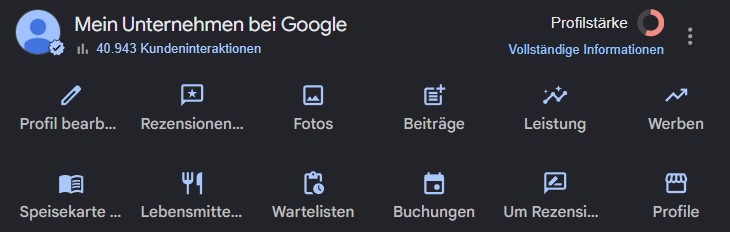
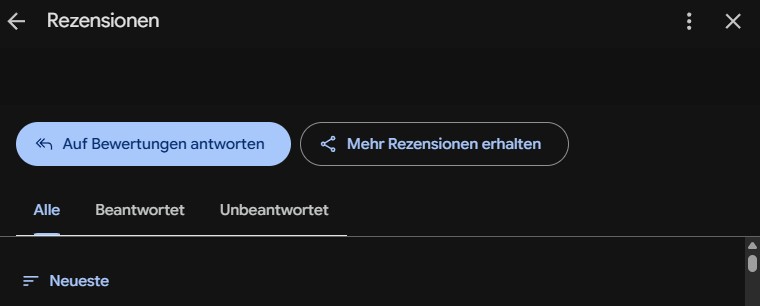
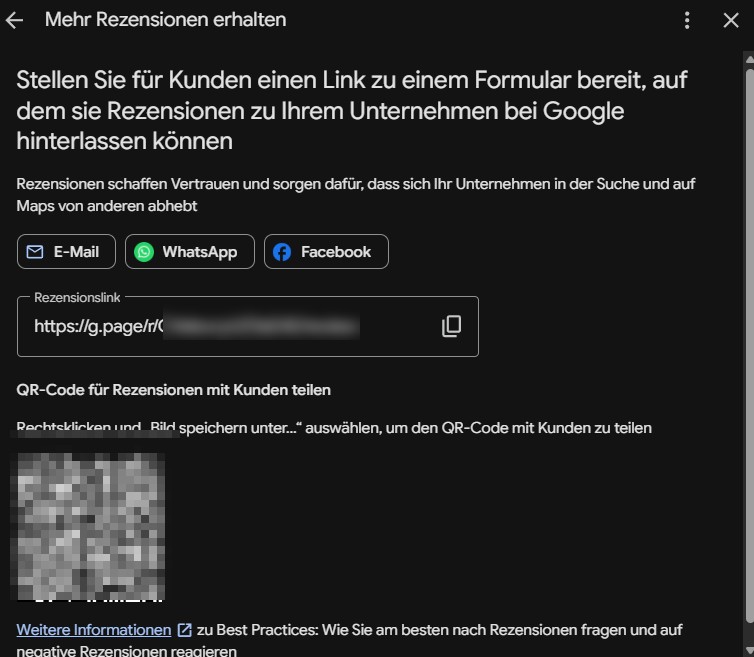
One important limitation: according to Google’s own help page, the QR code can only be generated through a computer browser, not the mobile app. Anyone with only a smartphone on hand needs to sit down at a computer for this one step. Google itself recommends using the code on receipts, in thank-you emails, after chat interactions, and on in-store displays. (Source: Create a Google link or QR code to request reviews, Google Business Profile Help)
Where the QR code actually works
Not every location is equally effective, and none of them work through mere presence alone. In our experience with restaurants, the same pattern keeps showing up: a table stand only really gets scanned once someone also points it out in person. Paying is the most natural moment for it, because a word is exchanged anyway and the visit is still fresh. A brief ask lands best there, the code then just provides the way there. One condition: the ask goes to the whole table, regardless of how pleased it seemed, because pre-selecting by mood is not permitted under Google’s policy.
The bill is the strongest spot for this combination. The guest has already had the experience, sits still for a moment, waits to pay, and this is exactly where a line from staff feels most natural: “If you enjoyed it, we would love a quick review, the code on the bill takes you straight there.”
A small table stand works as a quiet reminder for the rest of the meal, but it does not replace the personal ask. Without it, scan rates stay low in practice even when the stand is clearly visible.
The menu itself works less well. It gets read at the start of the visit, when there is no experience yet to write about, and nobody points it out deliberately at that moment.
The exit area is a good second chance, especially if the guest says goodbye briefly on the way out and the team gives one more friendly nudge toward the code right then, for example next to the coat check.
What to write next to it
The code alone does not explain itself. A short sentence next to it makes the difference between being ignored and being scanned: “Did you enjoy your meal? We would love a quick Google review.” No imperative, no pressure, no condition, just a friendly, low-key invitation.
Avoid wording that sounds like an exchange, such as “5 stars for a free drink”. That is not only against Google’s policies, it also reads as disingenuous to honest guests.
What Google’s policies explicitly prohibit
Google explicitly allows actively asking for reviews, but draws clear lines. The policy on prohibited content names three things specifically. (Source: Prohibited and restricted content policy for reviews, Google Business Profile Help)
Offering incentives is prohibited. Google’s wording is direct: businesses must not “offer incentives, such as payment, discounts, free goods and/or services, in exchange for posting any review or revision or removal of a negative review.”
Approaching guests selectively is also prohibited. A kiosk or QR code that routes satisfied guests to Google while diverting unhappy ones to an internal feedback form instead violates the rule against businesses that “discourage or prohibit negative reviews, or selectively solicit positive reviews from customers.”
Pressure on the premises is not allowed either. Google states explicitly that “merchants should not require or pressure users to leave ratings or write reviews while on the premises, nor should they request that specific content be included.”
An unprompted, unconditional invitation via QR code does not fall under any of this. What is explicitly allowed is to “solicit or encourage the posting of content that does represent a genuine experience, without offering incentives to do so or attempting to influence the rating or the contents of the review.”
QR code, NFC card, or short link: what fits when
All three lead to the same destination, but differ in how they are used. The QR code works on any smartphone with a camera app, needs no extra hardware, and can be printed as often as needed at no cost. The NFC card, in credit-card format, skips the scanning step, the guest only holds their phone to the card, but it requires an NFC-capable device and a one-time cost for the cards. The short link suits digital channels such as WhatsApp or email, where a screen is already active and no scanning step is needed.
For most restaurants, a printed QR code on the bill is the most pragmatic starting point, since it costs nothing beyond printing and works with every guest’s phone. More on digital channels such as WhatsApp and email is in our article Get More Google Reviews: A Guide for Restaurants.
A dedicated multi-platform tool: when it is worth it
The direct Google link is the simplest and most effective solution as long as Google is the only platform you actually care about. For most restaurants that is true, since most pre-visit research happens there.
There are situations, though, where a dedicated tool with a selection page for multiple platforms (Google, TripAdvisor, Facebook) genuinely pays off:
You depend on reviews across several platforms. In tourist-heavy locations, a meaningful share of guests still research via TripAdvisor, not only Google. If you need reviews there too, a single Google link does not cover that.
You manage several locations centrally. A tool with its own dashboard saves you from generating and printing a separate Google link for every branch individually, especially if codes change often.
You want to know how often the code actually gets scanned. The official Google link comes with no scan statistics of its own. Dedicated tools track scans and click-through rate, sometimes even which platform guests choose most.
You want to change the destination without reprinting. A dynamic QR code from a third-party provider can be redirected behind the scenes. A printed Google QR code, by contrast, stays fixed on its original destination.
The trade-off: every extra choice on an intermediate page costs conversion. A guest who first has to pick between several platform buttons drops off more often than one who lands directly in the review form. For most restaurants, the single, direct Google link still wins. A multi-platform tool only pays off once at least one of the situations above genuinely applies.
Common mistakes when using a QR code
The code leads to the wrong page. A QR code that simply points at the restaurant website or the general Google Maps address forces the guest into extra clicks. Use only the official link from “Get more reviews”.
The code is too small or poorly printed. A QR code under two by two centimetres is hard to scan in dim restaurant lighting. Test it under several lighting conditions before printing, not just on screen.
Nobody tests the code before printing. A single scan with your own phone before sending the print job catches most mistakes: a wrong link, a damaged image, the wrong location when you run several branches.
One code for multiple locations. Anyone running several branches but using the same QR code everywhere ends up collecting reviews on the wrong profile. Every location needs its own code from its own Google Business Profile.
How the SupaPresence team approaches this
We help restaurant operators systematise the review process end to end, from the right link to the right placement to a fast response on every incoming review. A good QR code is the first step, the ongoing upkeep afterwards is what actually makes the difference. Join the pilot for free.
Frequently Asked Questions
How do I create a QR code for Google reviews?
Sign in to your Google Business Profile, open “Read reviews” and then “Get more reviews”. There you can copy the link or save the QR code as an image. Important: Google only generates the QR code through a computer browser, not the mobile app.
Am I allowed to ask guests for a Google review via QR code?
Yes, Google explicitly recommends this as a method. What is prohibited is offering something in exchange, or approaching guests differently depending on how satisfied you assume they are.
Where should the review QR code be placed?
The bill works best, combined with a brief personal ask from staff at the till. A table stand helps as a reminder, but it does not replace that personal ask. The menu works less well, since it gets read at the start of the visit, not afterwards.
Does a QR code lead directly to the star rating form?
Yes, if it was created through the official Google feature. The link leads straight to the review page of the profile, without a detour through Google Search or the profile page itself.
What is the difference between a QR code and an NFC card for reviews?
Both lead to the same destination, the Google review form. The QR code needs a camera app, the NFC card only needs a tap with the phone. NFC is slightly faster, but not every device supports it reliably, while a QR code works on any smartphone with a camera.